
The cover block adds a large image over which you can add text. This block is an eye-catching feature, meant to give extra impact to special content.

Cover block header
Cover block is just a large image that has a dark overlay so you can put text blocks on top of it. This text is just a paragraph block added on top of the cover.
You can also just choose to have a plain black background with white text on top.
How to use the cover block
- Add the cover block to the page you’re working on.
- You will be prompted to add an image from the media library or upload an image.
- If you want the image to look good on its own at full width, we recommend using a photo that is at least 1920px wide.
- Should you just want a plain black background with text, there is a small circle of black in the cover block before you add a photo. If you click on that, then you’ll just have a black background over which you can put white text.
- You can then add text blocks to the top of the image.
How to edit cover block image
This block is unique in that there are two tabs under the block editor in the right-hand editor. One is for Settings and one is for Styles.
Settings
Under the Settings tab, there are a variety of things you can change about the cover image.
- Turning on fixed background gives the image a parallax scroll effect, so that as the user scrolls down the page, the image moves as well.
- This option is only recommended for high quality and large images.
- Turning on repeated background is a good option for images that are bit small that you don’t mind repeating across the cover image space.
- You can then use the focal point picker to choose the focal point of the image.
- You can also add Alt Text.
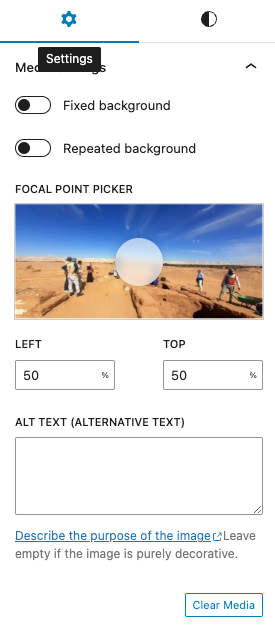
This cover has fixed background on.
This cover has repeated background turned on.
Styles
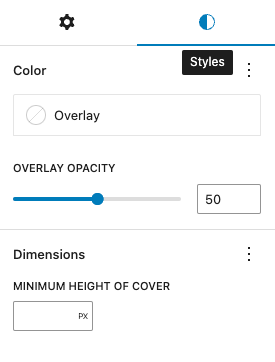
Under the styles tab, you can change the overlay on the image that darkens the image you upload so that users can better read the text.
- You can lighten or darken the overlay by adjusting the overlay opacity.
- You only want to change the opacity if the text is too difficult to read, or the image too difficult to say.
- The text must be easy to read to meet accessibility requirements, so do not lighten the opacity to such a level that the text gets lost in the image.