The regions content type is what displays the individual regions pages that are linked to from the Global regions map. These pages tell users about the research and opportunities to be found in that region.
Please note: Creating a new regions post will NOT add automatically add it to the Regions map. The MarComm digital team will have to amend the Regions map to accommodate any changes. So please reach out when it’s time to make a new region.
Template layout for region pages
There is a saved template for region pages on the global site for reference, but here are the instructions written out. For the easiest creation of a new region, copy and paste all of the blocks from the Region Template to a new Region post.
Region Introduction
This section gives users a general overview of the WashU global story in this region.
- Button block as a text with arrow style that reads “See all regions” and links to the Regions landing page.
- Paragraph block in the Lead style–this is just one sentence.
- Paragraph block that continues the overview of global’s work in this region.
If there is a WashU office in a region, we advise putting the above blocks in a 66/33 column. The blocks above would go in the left (66) column, while in the right (33) column, there’d be a Callout block with information about the regional office and a Button block to the contact information. An example of this can be seen in the Region template as well, for reference.
On this page anchor links
This lets users quickly jump down the page to the relevant section they are looking for using anchor links to the main headings throughout the page.
- Spacer block between the above section.
- Column block with 5 columns, or 20/20/20/20/20.
- The first column has an H6 heading block that says “On this page:”
- The other four call out the remaining sections on the page and are linked to those sections.
- Research Excellence
- Education and Outreach
- Alumni Networks and Impact
- Latest News in this Region
Regional infographics
This section highlights some key numerical data points for this region.
- Cover block with a regional image.
- Fixed background option is turned on in the Media settings in order to enable the parallax scroll effect for the image.
- Overlay Opacity is set to at least 70% or more to ensure the proper contrast between the image and text for best web accessibility.
- H3 Heading block reads “At a glance”
- By the Numbers block allows a row of data points. You can add up to 4.
- The link for this block should be read “View more data for XXX” and link to the global database.
Research Excellence
This section highlights stories that focus on the exceptional research in this region.
- H2 Heading block with the accent color underline.
- Short introductory Paragraph block.
- The Wide Media Spotlight block highlights a featured research story.
- H3 Heading block reads “More research stories”
- Latest Post block with the following options:
- Display as Grid View
- Columns set to show 3
- Only display excerpt and Load more; all other options should be toggled off
- Ordered newest to oldest
- Select the category of “Research Excellence” nested under the region you are focusing on
- Limit number of posts to 3
Education and Outreach
This section shows users the educational opportunities in this region with one feature story.
- H2 Heading block with the accent color underline.
- Short introductory Paragraph block.
- Column block with 66/33 columns.
- In left column, add the Accordion block.
- The educational programs each have their own accordion so users can scan the names of the programs, and open one that appeals to them. We also recommend setting one accordion to be open automatically which can be done using a toggle button in the right hand editor.
- In the right column, we have the feature story.
- Add a Square Photo Spotlight block and make it one of the site’s accent colors.
- Fill the Square Photo Spotlight block with the feature story information and link over to the story itself, which should be built as a Post.
- Should you have more education and outreach news stories to share, we advise following 4 and 5 from the Research Excellence section above and choosing the Education and Outreach as the category to filter.
- All of these blocks are then selected and grouped, so that a gray background can be applied to this whole section.
Alumni Networks and Impact
This section is meant to showcase how alumni can remain in touch and a few outstanding alumni stories.
- H2 Heading block with the accent color underline.
- Short introductory Paragraph block.
- Column block with 66/33 columns.
- In left column,
- Paragraph block that introduces regional networks on the alumni site
- Icon List block that links to regional networks on the alumni site
- Paragraph block that introduces WashU CNX
- Icon List block that links to WashU CNX
- In the right column, we have the network advancement contact.
- Callout block with an H6 Heading block that says “Network Contact”
- Contact name and title as a Paragraph block
- List block for phone and email address
- Make sure to select the appropriate Style in the right hand editor to get the little icon to appear.
- If there is a specific city in the region that has multiple contacts, use another H6 Heading block and title it “Contacts by Major City” then add Paragraph blocks below and hyperlink the text to the corresponding page of contact info.
- Wide Media Spotlight block is used for the featured alumni story information.
- Should there be more alumni to highlight, they should be added as a Person content type, and their story pasted there.
- Once the other alumni have been added, put a H3 Heading block on the page that reads “More alumni from XXXX”
- Then add the People block below the Heading and select the category for the corresponding alumni Region to enable their information to appear.
- Select the right hand editor options in the People block to Toggle OFF: Show category and Show pagination
Quote
This section highlights a powerful quote that applies to the region or captures an element of the WashU global work being done.
- Cover block with a regional image in the background.
- Fixed background option is turned on in the Media settings in order to enable the parallax scroll effect for the image.
- Overlay Opacity is set to at least 70% or more to ensure the proper contrast between the image and text for best web accessibility .
- Quote block is added within the Cover block with the quote text as well as the speaker citation.
More news
This section pulls in the latest news from this region using the latest post block.
- Section Heading with Link block should read “Latest news in XXXX”.
- The link text should say “Read more news” and should link to the rollup of the news stories for that region.
Reusable Regions nav block
This section has the most up-to-date navigation to the other regions.
- In the block selector, start to type “Explore our impact in other regions”. This will pull up the block by this name.
- IMPORTANT: If you make any changes to this block, it will change this block on all of the other regions pages too. This way, we can keep this block in sync across all the pages.
Regions map block
This Global Regions Map block allows users to navigate to another region to continue exploring, and ends the page with a night visual note.
Adjusting tool tip text on Global regions map
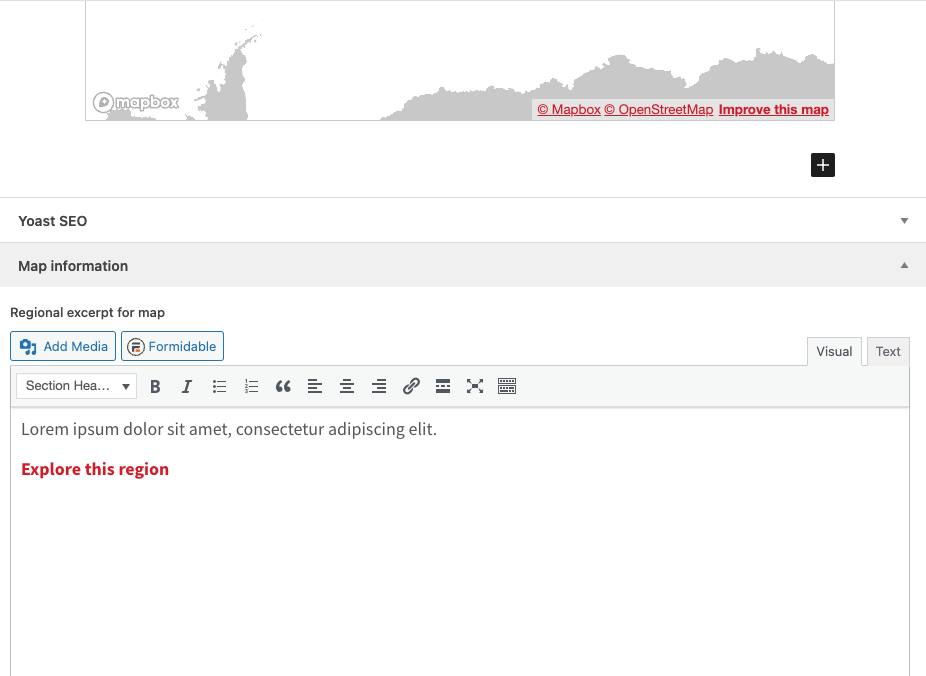
The tool tip that appears on the Region map when a user clicks on an area is populated by a field on the corresponding Region post of the same name. This field is at the very bottom of the Regions post editor. You have to keep scrolling until you get past the Yoast section.
Once you are to the form, the desired tool tip text should be put in the section labeled Map Information under the Regional excerpt for map. Save the post after you make an edit and check the map to see how it appears. We recommend a maximum of 140 characters for this excerpt to fit appropriately in the tooltip.
Make sure not to remove the red text link, “Explore this region”, in the text editor as that is what enables the tooltip to link to the region post. In order to create the red link below the descriptive text from a new region, follow these steps:
- Type “Explore this region” text
- Highlight that text and select the Ordered List icon
- Go to the dropdown on the far left and select Unstyled List to remove the bullet point
- Keep the text highlighted and select the Hyperlink button
- Begin typing the name of the Region post you want the tool tip to link to and WordPress will display a list of pages/posts with the same name
- Select the correct one and update the page to complete this process