
Create event locations separately from the event itself — and before you create the event.
When you create an event, you can add location information to the body of the event description or add it using the Location field in the editor. Using the Location field allows the event’s location details to appear in previews of the event on any event listing on your site. In addition, using this field ensures location information is listed consistently on all event detail pages.
In order to select a location for an event, you first have to create that location following the steps below.
Tips for virtual events
Since the location field is useful for event previews and consistency, we recommend creating an event location even for virtual events.
For example, you might create a location called “Zoom” or “Virtual Event” and leave the address and map information blank. In the body of the event description, provide instructions for attendees to join.
WashU IT recommends against listing Zoom links publicly, so you may wish to have attendees register; then you can email the link. Attendees can register by emailing you directly, or you can create a simple form.
Getting started
- From your site’s dashboard, go to Events > Locations.
- Click Add New in the top left corner of the screen.
Name your location
- In the title field, enter the name of the location (e.g., Danforth University Center).
- Leave the visual editor (the big text box below the toolbar) blank.
Enter the address
There are two different ways to add an address to your Location. The difference between them is how this information will display. If you would like the address to accompany the location’s name when it is shown on your event or in event listings, use the Add my own location option. If you would like a Google Map to display at the bottom of the event’s content, use the Google Map option.
Option 1: Add my own location
- In the Select a Location box, click the Add my own location button.
- Enter the address, city, state, postcode and country in the fields to the right of the map.
- The text you enter in these fields will display along with the title of the location wherever it is associated with events.
Option 2: Google Map
- In the Select a Location box, click the Google Map button.

- Enter the address, city, state, postcode and country in the fields to the right of the map.
- The text you enter in these fields will display along with the title of the location wherever it is associated with events.
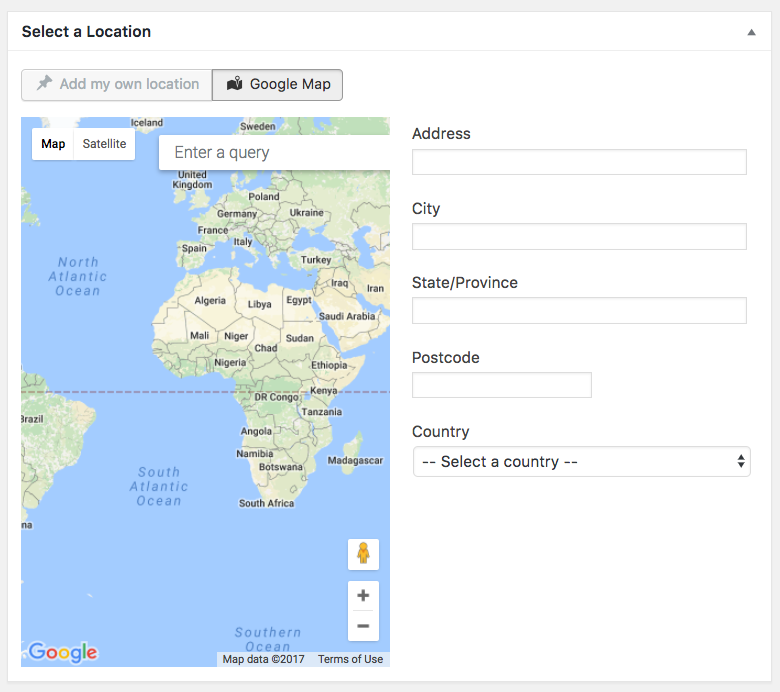
- In the field at the top of the map that says Enter a query, type in the address again to locate the address on the Google Map.
Important to note
If you forget to type in the address in the Enter a query field, only the address text and a map with no location pin will appear on the event detail page.

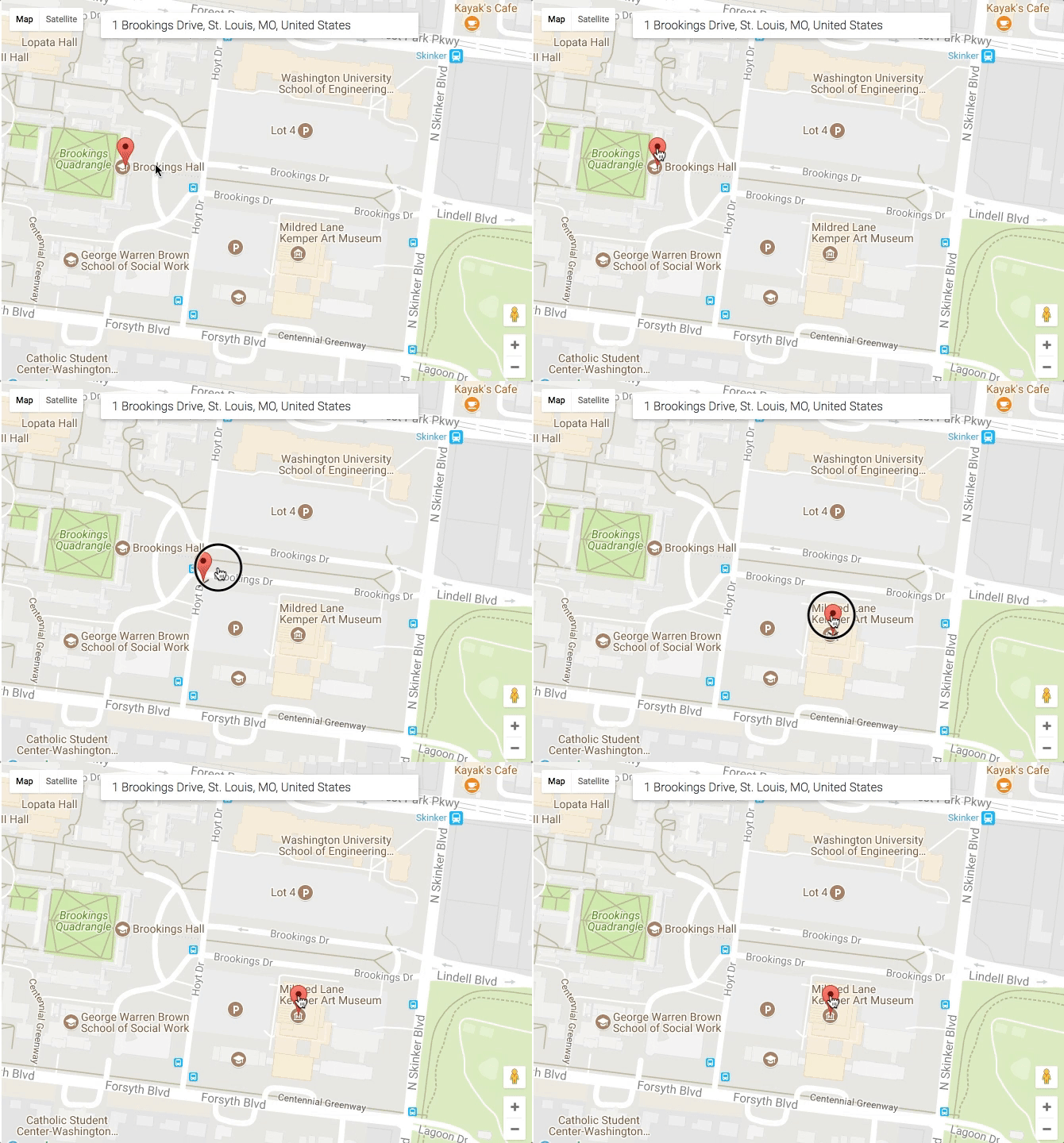
- Move the location pin, if necessary. For example, multiple locations have the address 1 Brookings Dr., so you may need to move the pin to the correct building on campus.
- Entering the name of the specific building is sometimes helpful to produce the correct location on the map (ie. query “Mildred Lane Kemper Art Museum” for the correct pin position as opposed to “1 Brookings Drive, St. Louis, MO”).
Publish the location
Click the Publish button on the right of the page to make your location appear in the Location field of the Event editor when it is searched for by name.