Lists are useful for organizing and summarizing key information or outlining a high-level ordered list with substeps (like this tutorial!).
How to use the list block
- Add the list block, or transform a paragraph block into a list block.
- In the right panel, select a list style. Style options are Regular or Unstyled.
- Regular lists use styled icons (numbers or bullet points) to organize information.
- Unstyled lists are indented and do not use styled icons.
- Select unordered (or bulleted) or ordered (numbered) from the block settings in the top toolbar.
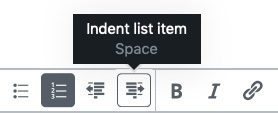
- Create sublists by indenting an existing list item. Place the cursor in front of the list item you wish to indent and select Indent list item in the top toolbar. If you decide a sub-list belongs as a new list item, you can select Outdent list item.
Special icons for listing contact information
The listing block also has options to put helpful icons when listing contact information under a person’s name.
- Phone number
- Fax number