Child pages have to be manually added in order for them to show up in the mobile view of the website. Follow these instructions to make sure the desktop and mobile menus for the site are the same.
From the site name in the admin bar (top left), use the drop down menu to navigate to Menus.
- Make sure the Edit menu tab at the top of the editor is selected
- Under Select a menu to edit, make sure Main Nav (Main Menu) is selected
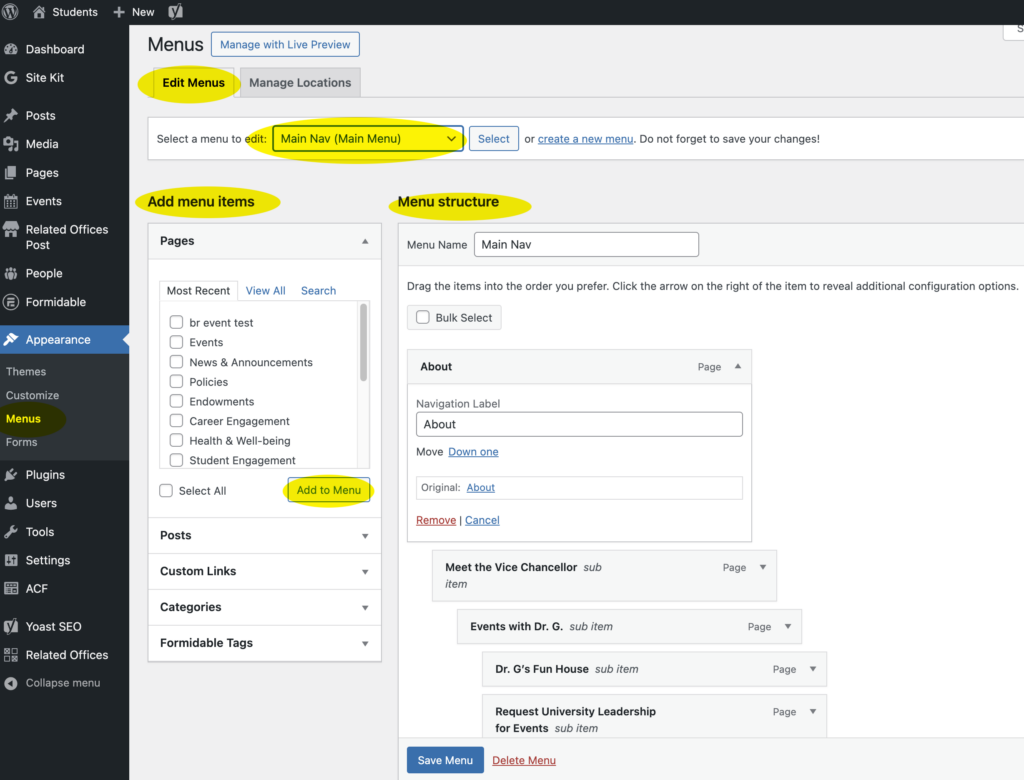
Adding a page to the menu
If you have added a page to the site, add it to the menu:
- Find the title of the page you added in the column labeled Add menu items
- Select the box next to it and click Add to menu
- The page you added will appear at the bottom of the column labeled Menu structure
- Click the box for that page and drag it to the correct position in the menu (matching the desktop menu)
- To nest the page under another menu item, drag and slide it to the right
- Scroll to the bottom of the menu editor and click Save menu
Removing a page from the menu
If you removed a page from the site, remove it from the menu:
- Find the page under the column labeled Menu structure
- Click on the arrow on the right side of the page title’s box to open up options for that page
- Click the red Remove button
- Scroll to the bottom of the menu editor and click Save menu