
The Gallery block allows you to display multiple images together. It contains individual Image blocks for each image and arranges them automatically.

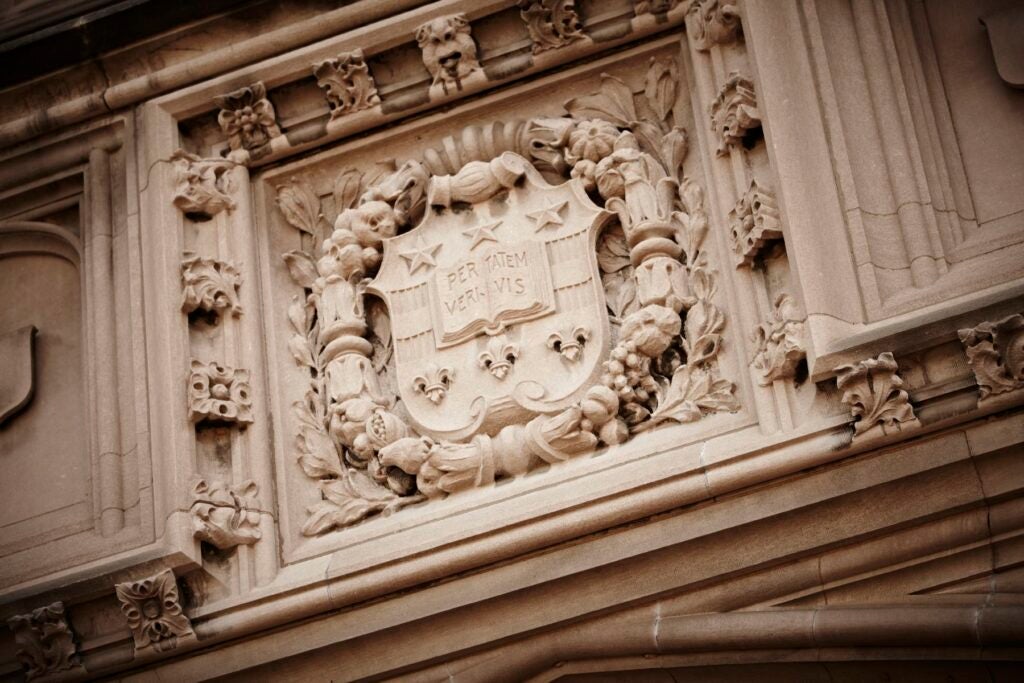
Photo by Mark Katzman/WUSTL Photos
How to add a gallery
- In the Page Editor, navigate to the area of the page where you want the gallery to display.
- Click on the Add block icon [+] and select/search for Table from the block menu.
- Add your images. You are given two options:
- Upload: add new images from your computer.
- Media library: select images already in the media library.
- Once done selecting images, click Create a new gallery in the bottom right corner.
- The Edit gallery screen will appear. Click Insert gallery in the bottom right corner.
- With the Block selected, select the options you want for the gallery in the right sidebar of the page editor:
- Styles: Default or Slider
- Columns: 1 or 2
- Resolution: thumbnail, medium, large or full size
- Link to (we do not recommend using this)
- Crop images to fit (toggle on or off)
- Randomize order (toggle on or off)
- Click Update in the upper right sidebar of the Page Editor to save your changes.