Mocking up new pages and posts
If you’re drafting a new page or post, staging content can be fairly straightforward. You can build the page and keep it saved in draft mode until the page is ready to go live.
To view unpublished pages, including a page saved as a draft, the reviewer will need to be logged into the website. If this isn’t feasible, you can take a full-page screen capture of the page to share.
Staging edits to existing pages or posts
Use the Rewrite & Republish tool to stage and save complex edits without publishing them.
From your site’s dashboard:
- In the left menu click Pages or Posts, depending on what type of content you are updating.
- Hover over the title of the page you wish to rewrite.
- Underneath the title, click Rewrite & Republish.
- This will open the page-editing screen, where you can immediately start rewriting the duplicated version of the page.
- Alternatively, you can open an existing page and click Rewrite & Republish under the page settings in the right panel.
- Make your changes in the duplicate post.
- You can click Save Draft in the top right until you are ready to publish the changes. To see and edit previously saved drafts, click Pages (or Posts, etc.) in the left menu of the WordPress dashboard. Above the list of all pages, click Drafts.
- Click Preview to review the changes in a new tab.
- To share the page for others to review, you can:
- Share the preview link. Only logged-in site editors and admins will be able to view it.
- Take a screenshot of the page to share for review.
- When you are ready to publish the edits, click the Republish button in the upper right.
- You will see a prompt that allows you to compare the old and new versions of the page or post before publishing.
- If you want to compare the versions, click Save changes and compare.
- If you want to continue editing, click Cancel.
- If you are ready to publish, click the Republish button again.
When the rewrites are published, the duplicated draft version will be automatically deleted, and the original post or page will be updated.
To schedule publication for a later time:
When you first click the Republish button (step 5), you also have the option to schedule the republishing date and time. To do so, click on the Republish item. The menu will expand, allowing you to select a time and date.
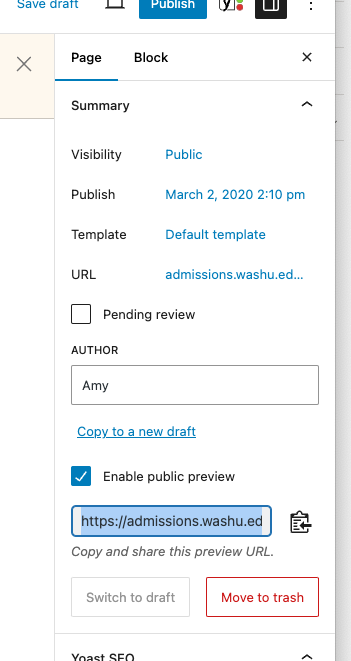
To share an unpublished page
- When editing Page or Post, click ‘Enable public preview’ button
- Copy the preview link provided below the button
It’s important to note that the public preview link will expire after 7 days after which a new preview link will need to be generated.