
The featured events block allows you to highlight up to three events on a page.
The block can featured events from any site. Each event links to the event detail page that has been added for the specific event. On hover, the background is filled with a red gradient to highlight the event you are on.
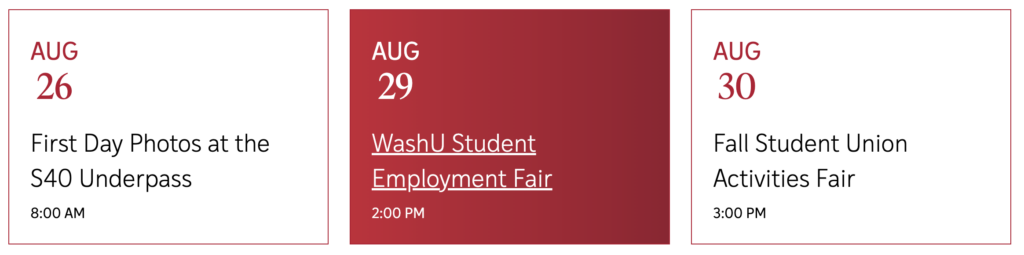
How to use the Featured Events block
- In the Page editor, navigate to the place on the page where you want to display the featured events.
- Click [+] and select the Featured Events block from the block menu.
- In the settings panel, enter in the event information
- Event title – fill in the event title
- Event URL – copy and paste the event detail page URL
- Start Time – Choose a start date from the calendar picker and a start time from the time drop down options. Click the done button when ready.
- End Time – Choose an end date from the calendar picker and an end time from the time drop down options. Click the done button when ready.
- The event will be added to the page when all of the event information has been added.
- To add another event, click the Add Event button.
- You can add up to three events.
- To remove an event, hover over the event you wish to remove and click the [-] button.
- Click Remove to remove the event, or cancel to cancel removing the event.
- To reorder the events, drag and drop the events in the order you wish them to appear.
- It is best practice to have the events display in chronological order
Expired events will not show up on the front end of the site. If all events are expired, a message will appear stating ‘Check back soon for updates. No events are currently posted.’