
We use Jotform, WashU’s secure form solution, to build or manage forms needed within the website.
Jotform forms are built within the Jotform interface and embedded into a page or post on the website.
Set the form’s theme
The theme needs to be set for each form.
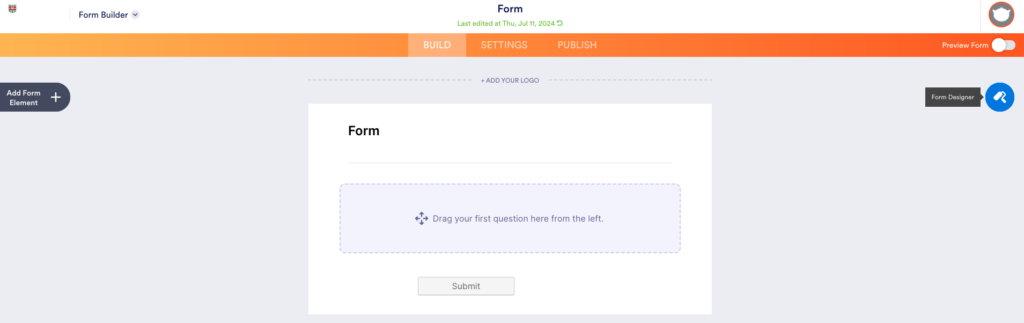
In the form builder screen, select the paint roller icon from the right side to enter the “Form Designer”.
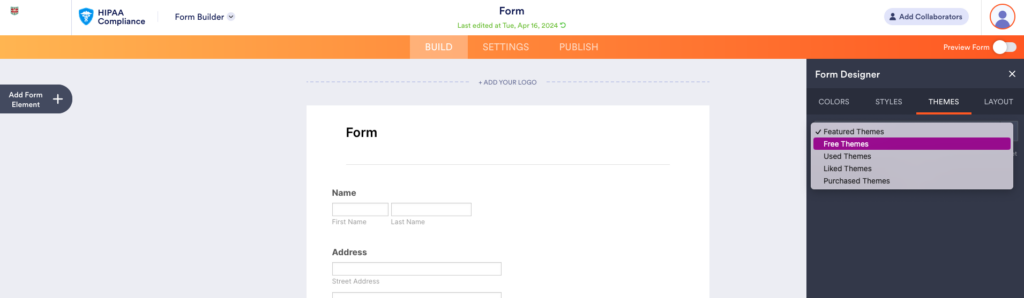
Select Themes > Free Themes.
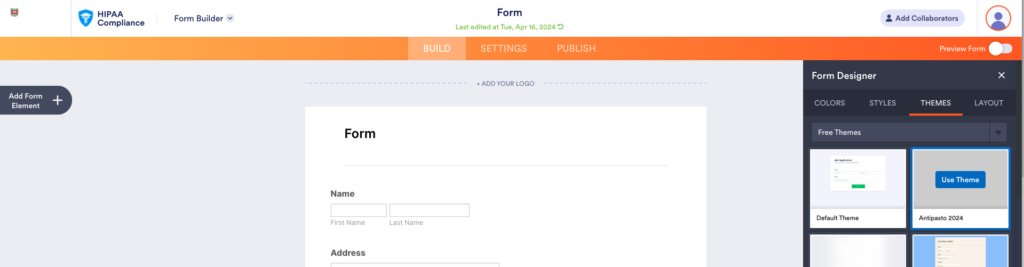
Find Antipasto 2024 and select “Use Theme”.
Import an existing form
Jotform tutorial to import a form from an existing site
Forms on the previous version of students.wustl.edu will not directly import. To import a form from students.wustl.edu, you will need the URL for the form preview. Navigate to the Formidable Forms form list and either select “Preview” from the form options in the list or click the “Preview” button in the form builder to generate a preview.

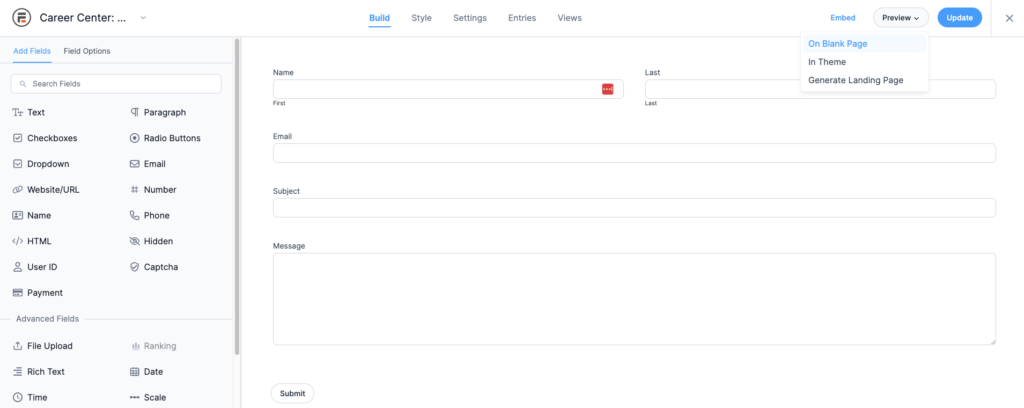
Copy the URL generated (e.g., https://students.wustl.edu/wp-admin/admin-ajax.php?action=frm_forms_preview&form=campuslifethanksgiving2020eventsregistration).
In the Jotform interface, go to Create a Form > Import Form > From a Web Page and paste the preview URL in the Enter URL field. Click the blue Create Form button. This
User access to Jotform
Users who need access to Jotform forms or data should request a license from IT via ServiceNow. (There is no cost to the license, despite the need for approval in the ServiceNow system.)
Additional guidance
For detailed help using Jotform, refer to the Jotform user guide.
For customer support, contact Jotform Support.