
Adding links to a page or content type
Add a link to a paragraph block
To create in-text links to other pages/posts or websites, highlight the text that you’d like to appear as the link and click on the link icon in the editor bar.
- To link to an external website, paste the destination URL (i.e., https://destination.com/) into the box that appears, then click the apply icon.
- To link to a page within the same website, enter a term relevant to the page into the box that appears. If you do not immediately see the page/post’s name appear in the list beneath the search box, scroll down to find the page/post you’re looking for, and select the desired page/post. The appropriate URL and title will populate the field.
Add links by using buttons or other blocks
Another way to add a link to a page is to use the Button block, the Photo Spotlight block, or the Section header with link block—that automatically include a way to add a link.
Email addresses in text
To add a clickable email address, select the text you’d like to be clickable and proceed to click the link icon as if you were adding a link. (Select the text that you’d like to appear as the email link and click on the link icon in the editor bar.)
In the input box, type “mailto:” followed by the email address. If the on-screen text is the email address itself (e.g., what the user sees and clicks on is “example@wustl.edu”), WordPress will automatically convert the email address into a clickable link once you click on the link icon; it will not be necessary for you to type “mailto:example@wustl.edu.”
If you are not using the email address itself as the visible text – if you instead use the addressee’s name, for instance – it is critical to add “mailto:” in front of the email address within the link box. Without “mailto:”, a broken link will be created.
Linking to a PDF or other document
We do not recommend linking to PDFs or other documents for download.
Best practices on PDF’s
Best Practices
1. Format for in-text links
When adding links within text, you want to adhere to web accessibility guidelines by making the link self-explanatory even when read out of context. Avoid using generic terms like “click here” or “learn more” as the link text. Instead, select a word or phrase that clearly communicates its destination–where the site visitor will go if they choose to click the link. Also avoid using the actual destination url as the hyperlink text.
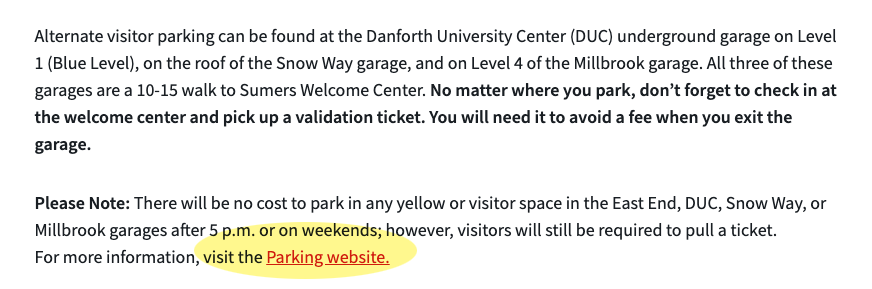
The example above is the correct use of an in-text link, rather than visit http://parking.wustl.edu.
2. Length of link text
Use as few words as possible to clearly convey what the link is about. Limit link text to 2-3 words, if possible.
Ex. In the above example, Parking website is optimal versus For more information, visit the Parking website.
3. Avoid forcing users’ browsers to open links in new tabs/window.
Best practices on windows and tabs